CRM Recruit for GAU Admins
Below you will find a quick how to on reviewing, assigning and tracking reviews by your faculty reviewers. If you are having technical difficulties, please contact applicationsupport@unb.ca
Logging into Recruit
In most cases you are being tasked to review an application for admission, verify that the application meets your GAU's minimum requirements, and assign the appropriate faculty reviewers to provide feedback on applications.
CRM allows you to do this from a main Dashboard, where you can track the progress of faculty and assign your Director a Review when a decision is ready to be made.
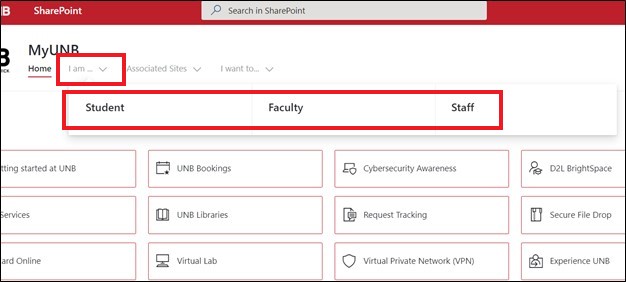
You can access CRM Recruit from the MyUNB Intranet.

Click on 'I am' and select 'Staff'.
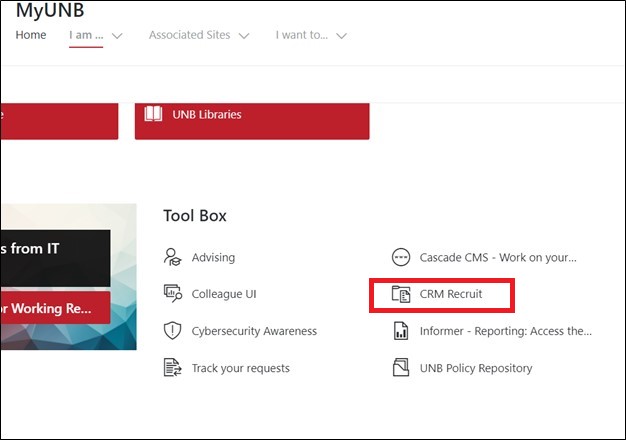
Click on the Recruit link in your 'Tool Box'.
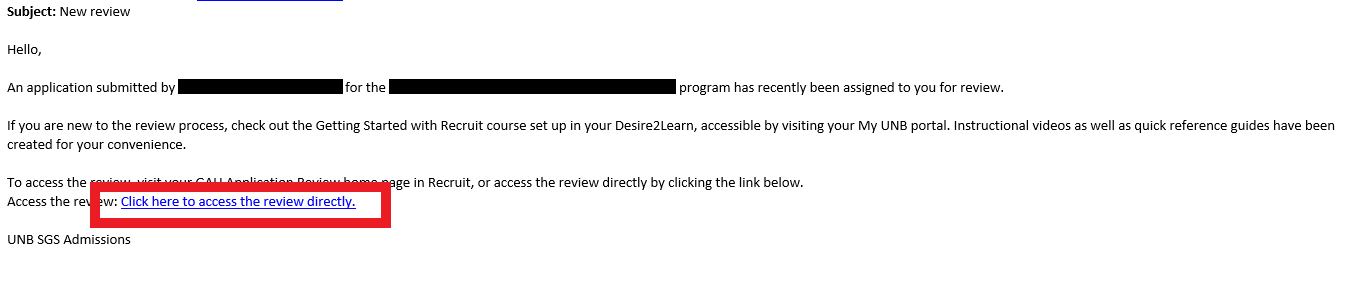
You may also have received an email notifying you of the review which has been assigned to you by an SGS Program Officer.
If you are logging in for the first time through the Intranet, or by clicking the link in the email you received, you may be prompted with a choice. Select Other Organization.

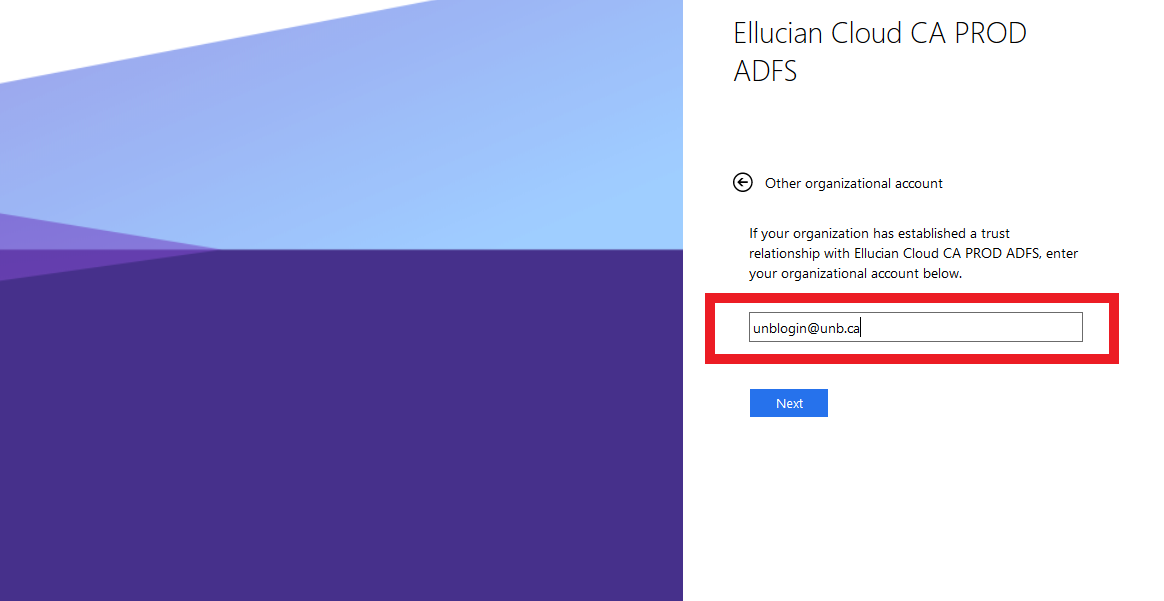
Next, enter your UNB Login credentials.
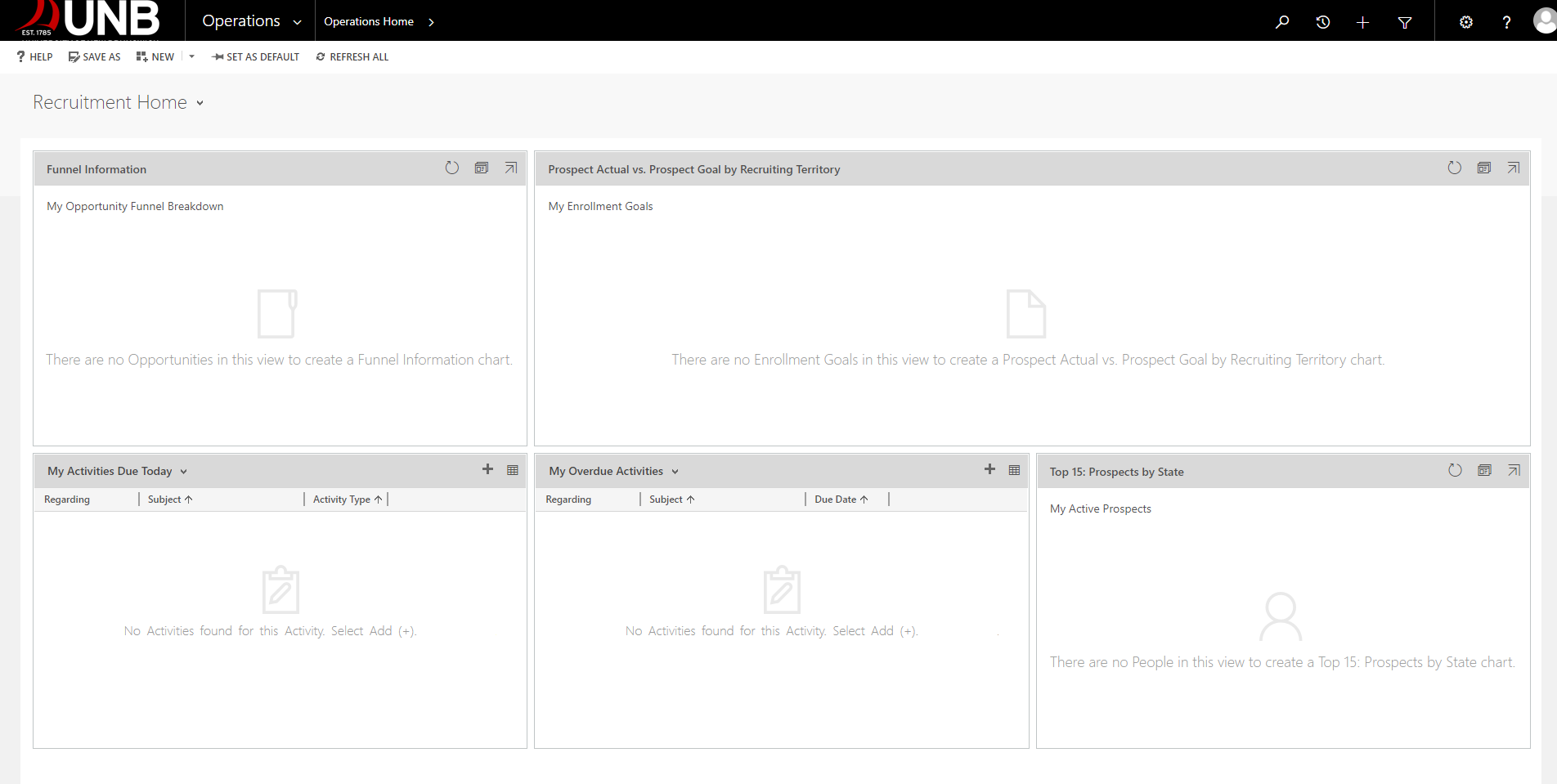
Once you have successfully logged in from the my.unb.ca portal for the first time, you will land on the "Recruitment Home" dashboard which will need to be changed.
You will want to use the Dashboard designed for the application review process at the GAU level, so move down to the next section in this guide to learn how to set your default Dashboard.
If you are logging in directly from the email sent to you by gradadmissions@unb.ca, you can skip to the "Reviewing an application" section.
Setting your Dashboard
If you are logging in through your my.unb.ca portal for the first time, you will want to set your default dashboard.
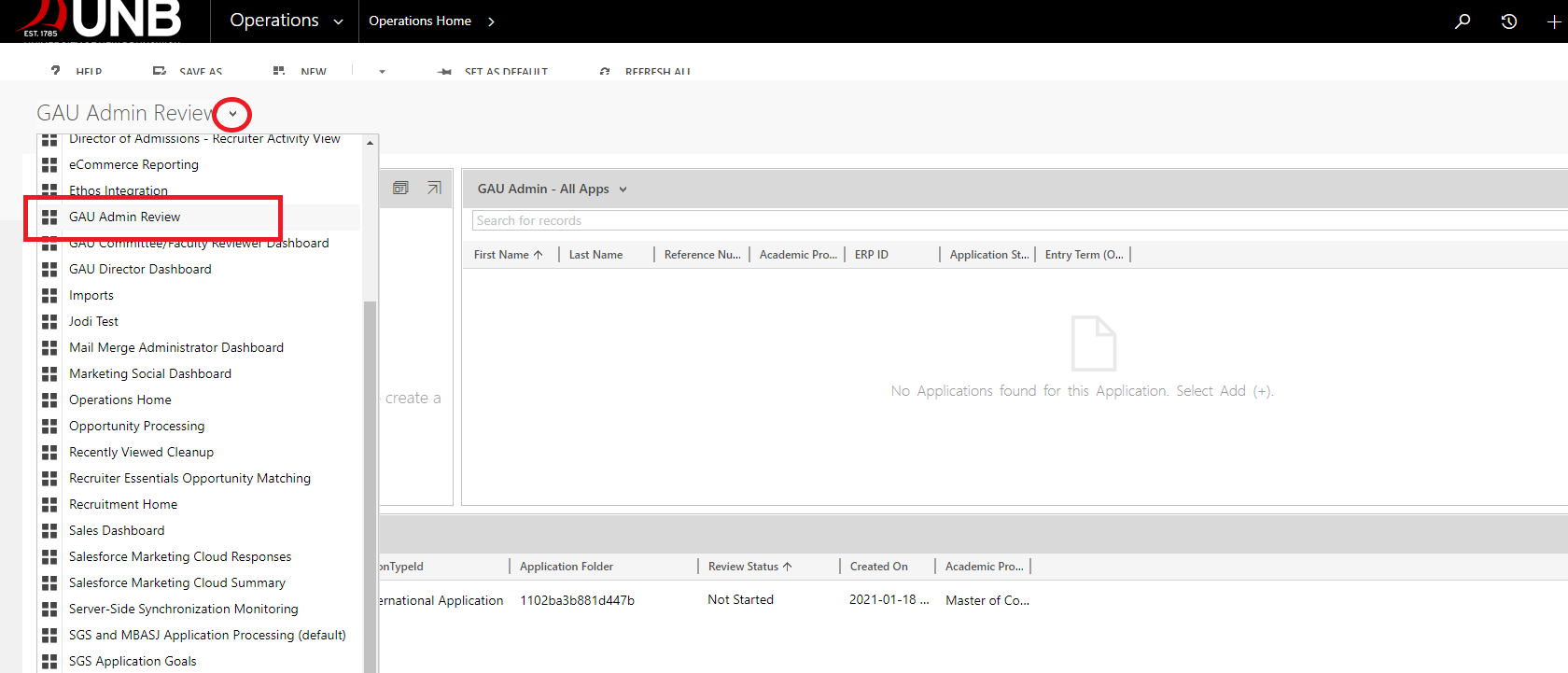
Change the Dashboard to the GAU Admin Review Dashboard.
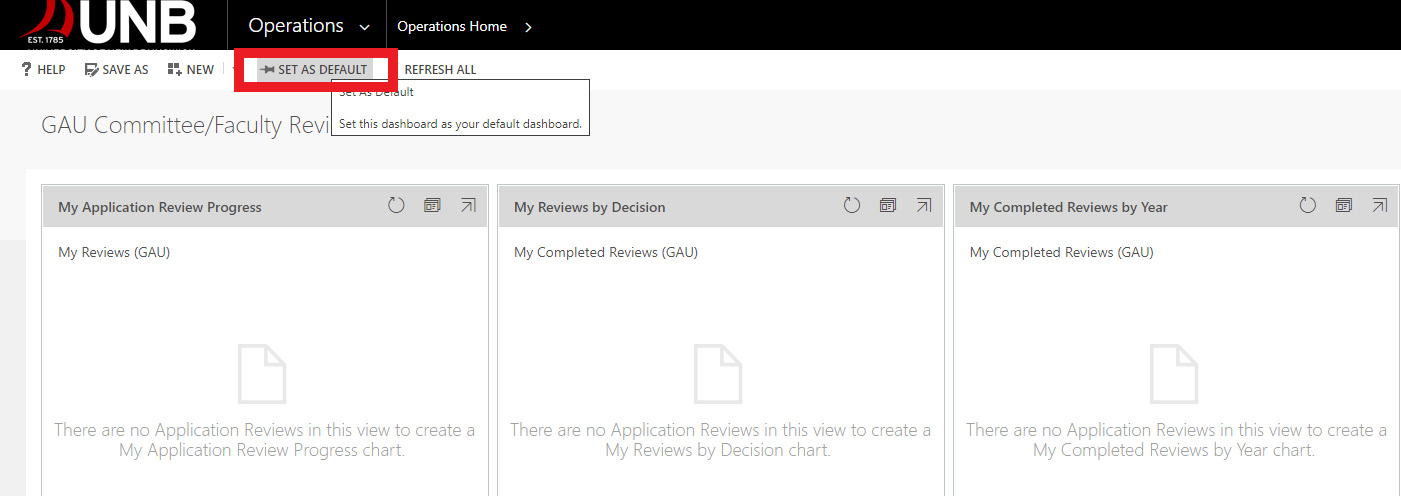
Set this as your default by slicking the "Set as default" button. This will ensure your default dashboard is always the first presented in the future.
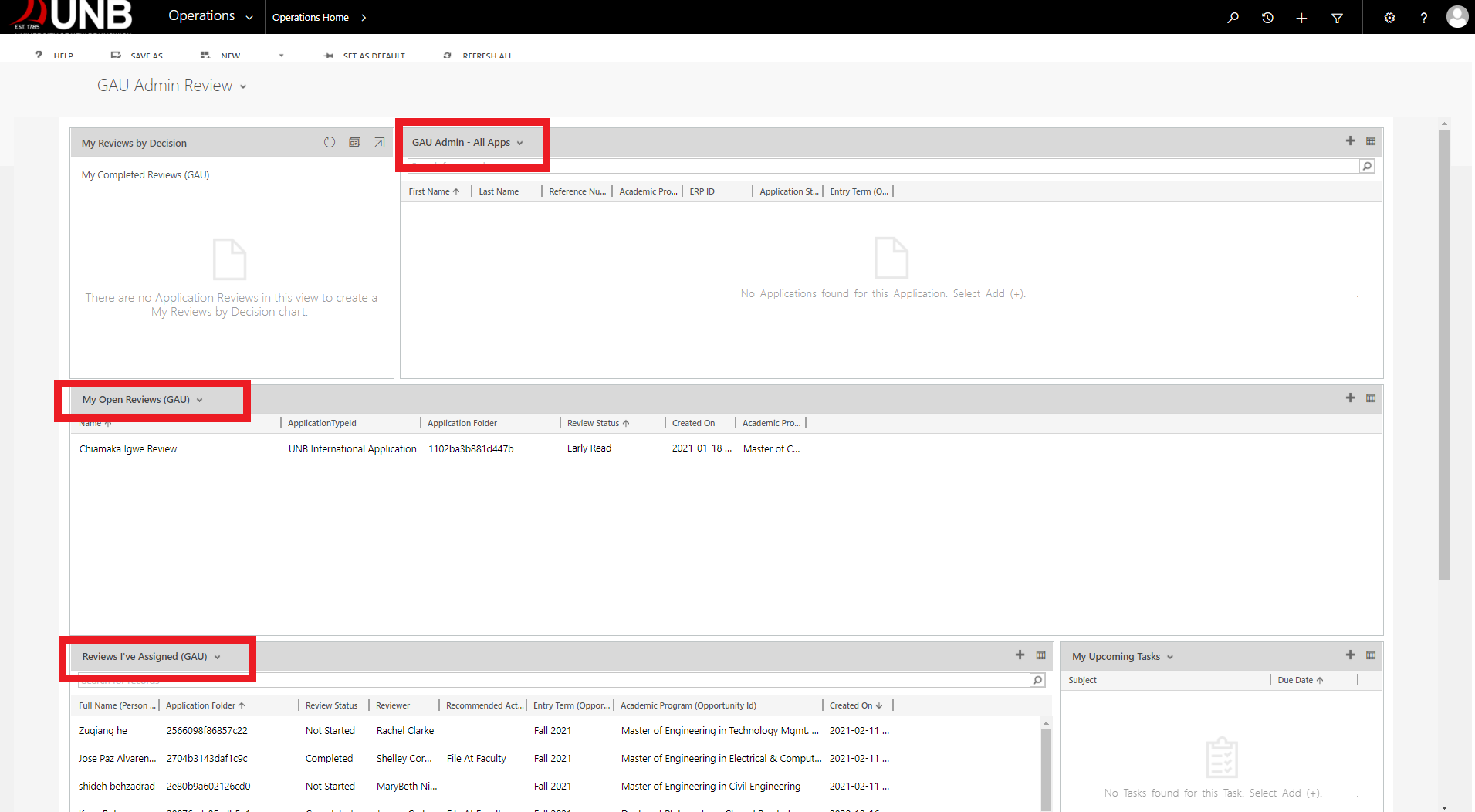
Your Dashbaord will show a list of applications which belong to the programs in your GAU review path, as well as lists of reviews that have been assigned to you by an SGS program officer when the application is complete by the applicant. These can be found in the 'My Open Reviews' window.
You will also be able to see a list of reviews you have assigned to Faculty reviewers, or to your Director.
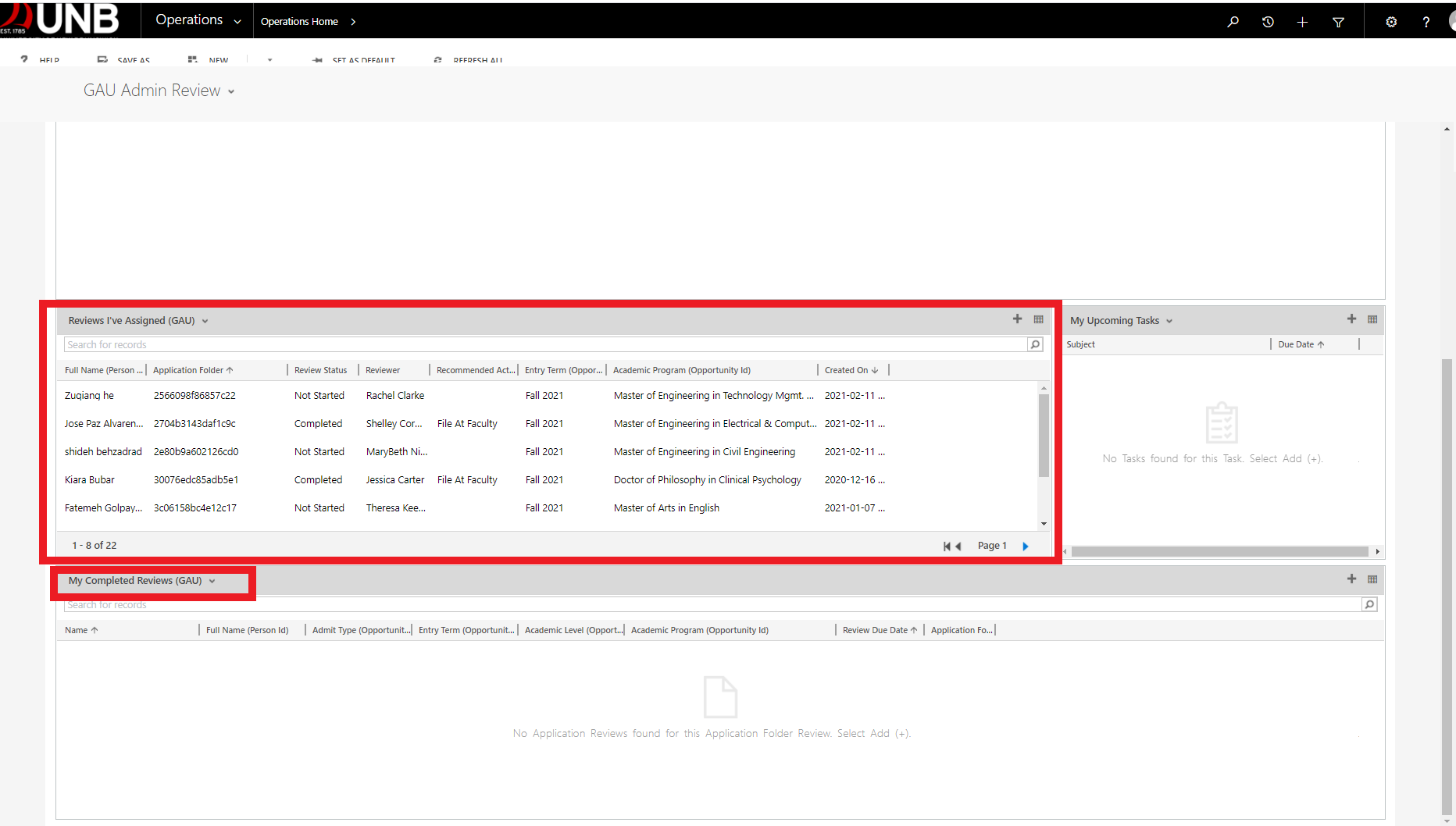
It is up to you to decide how you want to deal with tracking progress of reviews you have assigned, but the suggested process as an admin would be to assign faculty reviewers, track their progress, and assign a review to the Director once the faculty members have completed their reviews and made a recommendation. We will look at this more in the 'Tracking Faculty Reviews' tab.
Finally, you will see reviews that you have 'completed', which will populate when you fully complete a review. More on this in the 'Completing Reviews' tab.
Now that your dashbaord is set, learn how to access a review in the next section.
If you already know how to open a review from the dashboard, or have landed on the review page directly from an email, skip to the "Reviewing an Application" section.
Accessing reviews assigned to me
Reviews can be accessed directly from the link in the email all reviewers receive when a review is assigned, or through your default dashboard.
To open a review from your default dashboard, simply click on the review.

To open it directly from the email you received, click on the link noted in the email.
Reviewing an application
Once you click on the link to the review in the email, or open the review from your Dashboard, you will be brought to the review form.
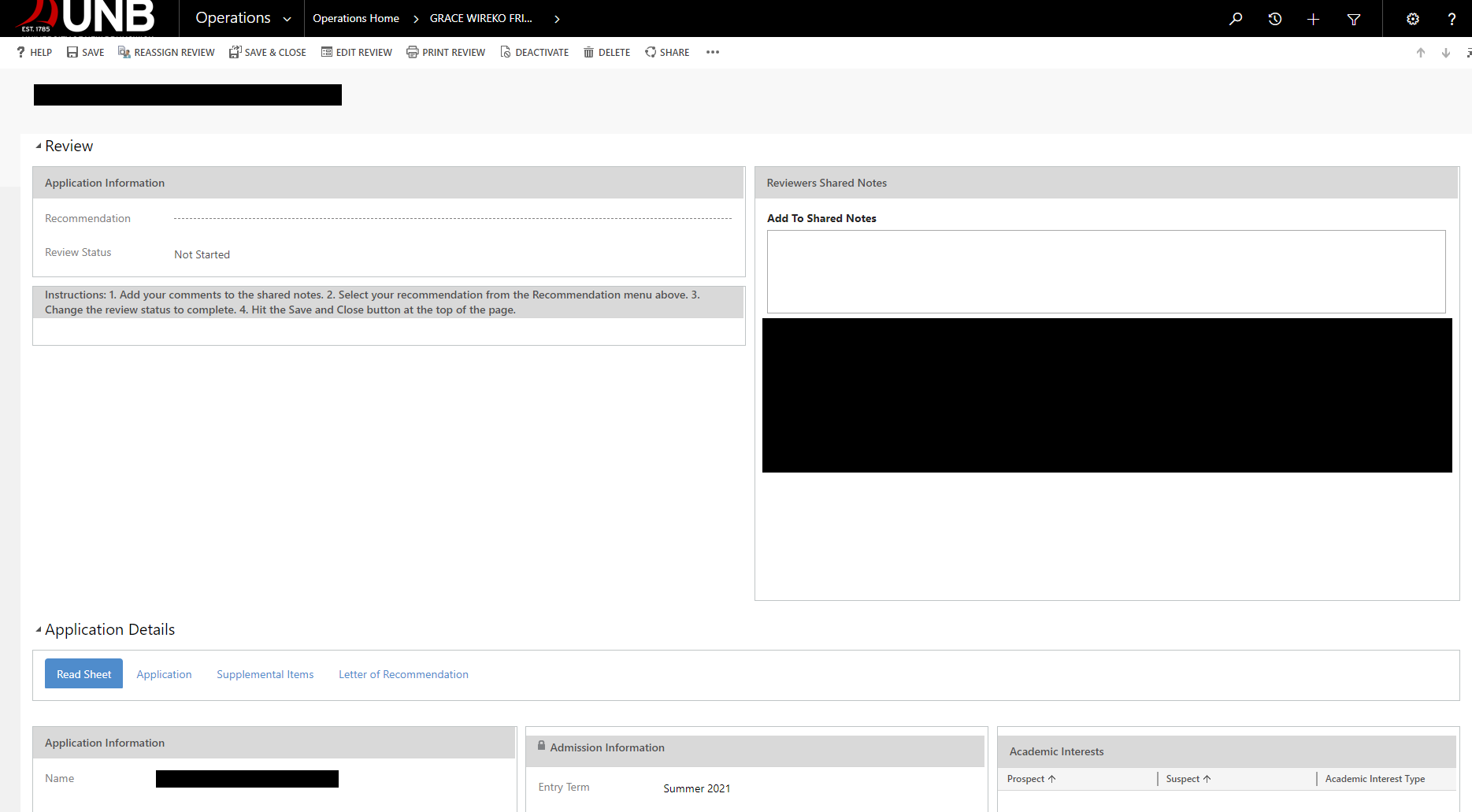
Before completing your review, and assigning faculty reviewers, you will want to review the application along with the supplemental documents submitted by the applicant to help provide you some guidance on who to add as reviewers, what sort of shared comments from you that you would like the reviewers to see and get an overall first impression of the applicant.
For the purposes of this tutorial, the applicant information has been redacted.
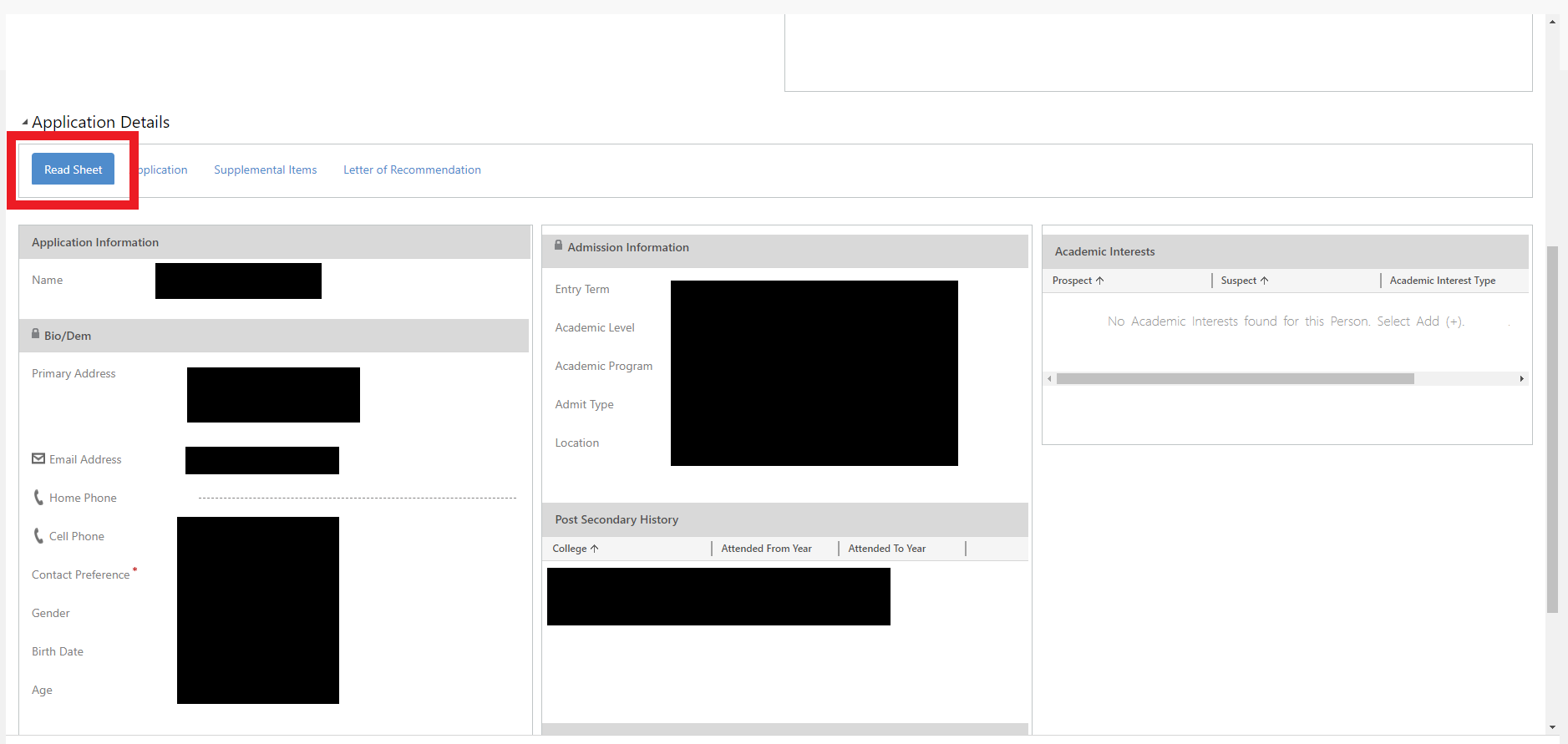
Begin by checking out the Read Sheet. The Read Sheet is an overview of the applicant, including which program they are applying to as well as which term they would like to begin.
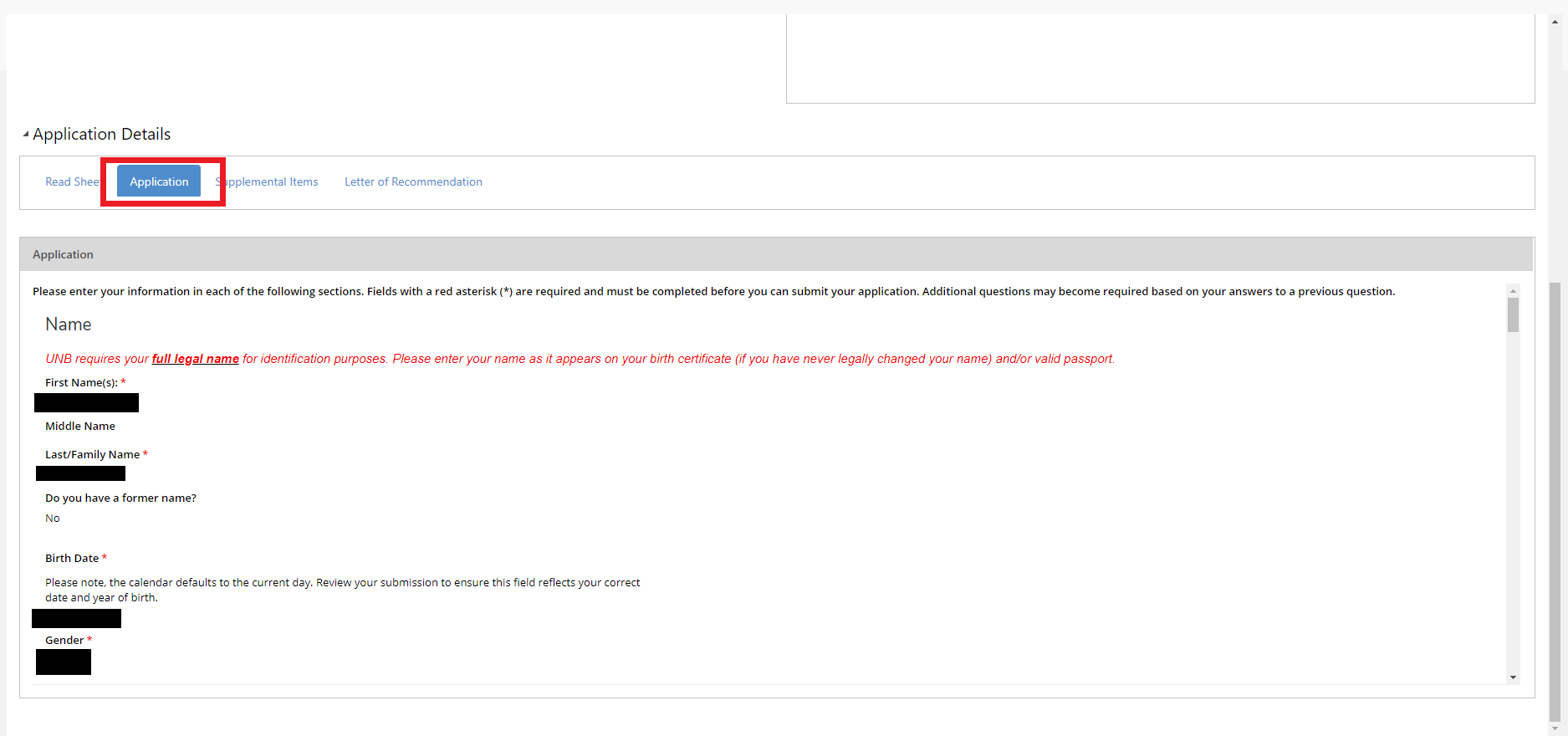
Next, you can take a look at the application which are program specific questions answered by the student.
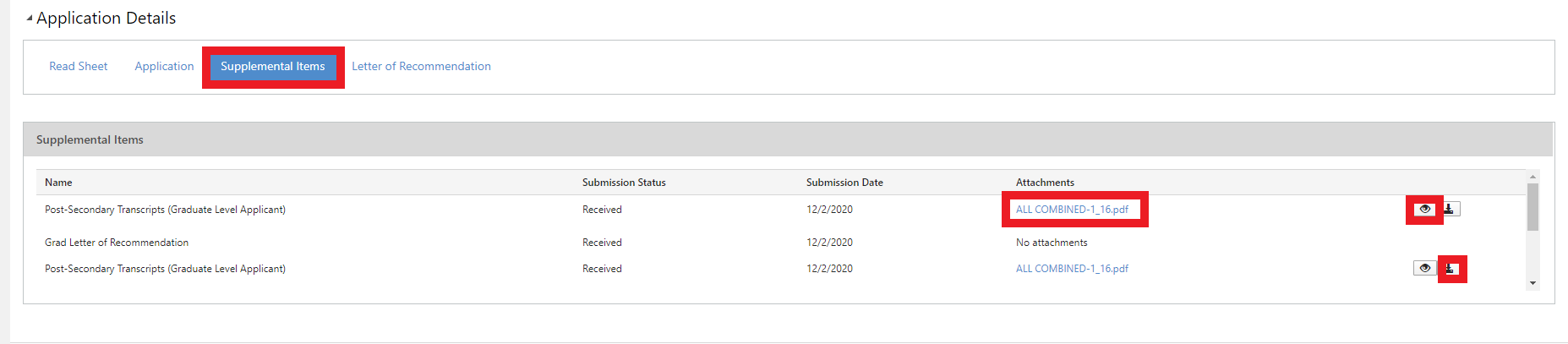
 Next, you might want to review the supplemental items submitted by the applicant. You can view PDF's by clicking on the link and opening it in the browser, or by clicking on the eye icon. Any other documents such as .doc, .jpg, .bmp will need to be downloaded to view by clicking on the download icon.
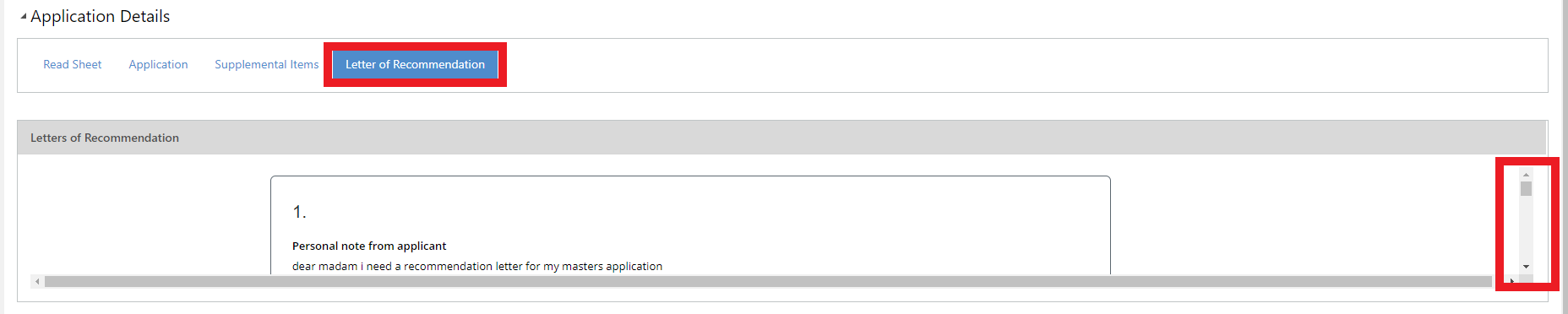
Lastly, you can review the letters of recommendation forms completed by the referees.
Once you have gathered your information from the applicant, you are ready to add comments and add reviewers,
To find out how to fully complete a review in a few simple steps, see the next section on "Completing a Review".
Completing your review
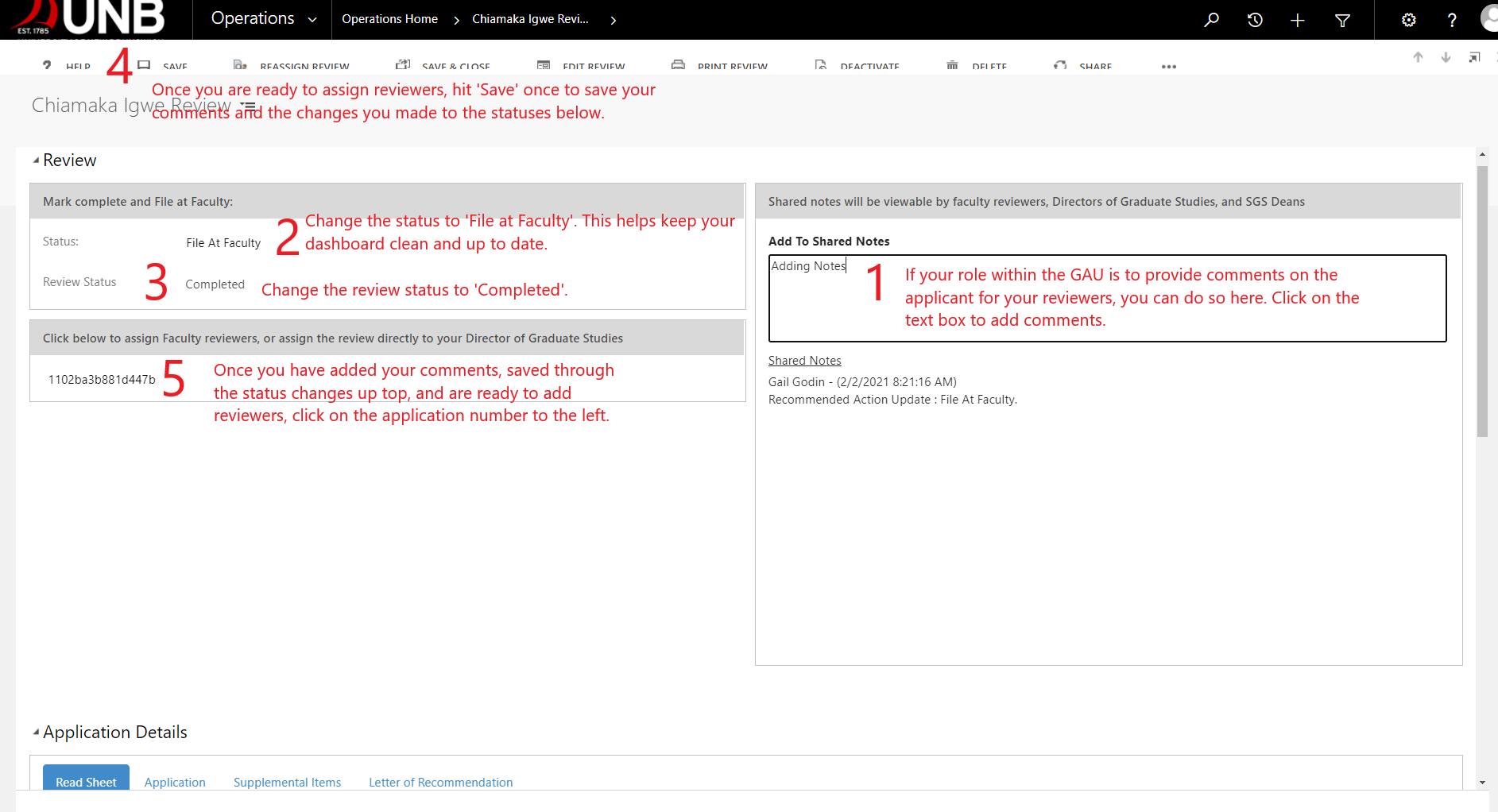
After you have reviewed the application and documents, you will now want to add comments, assign reviewers, and complete your review.
Completing all of the steps below will move the review from your "Open Reviews" on your Dashboard, to your "Completed Reviews" on your Dashboard.
If you would like to keep the review in your 'Open Reviews' until it is finally assigned to a Director, or if you are waiting to hear back from a faculty member who you may assign as a reviewer, you can always choose to set the review status to 'In Progress' or 'Early Read'. This is entirely up to you.
Once you are ready to assign reviews, and have completed Step 5, you will need to assign reviewers. More on this in the next tab.
Assigning Reviewers
In order for faculty members to provide a recommendation, they will need to be assigned an application review.
Once you have completed Step 5 on the previous tab, you will be brought to a new page, which is the 'Application Review' tab in the application funnel.
Click on 'ASSIGN REVIEWER'.
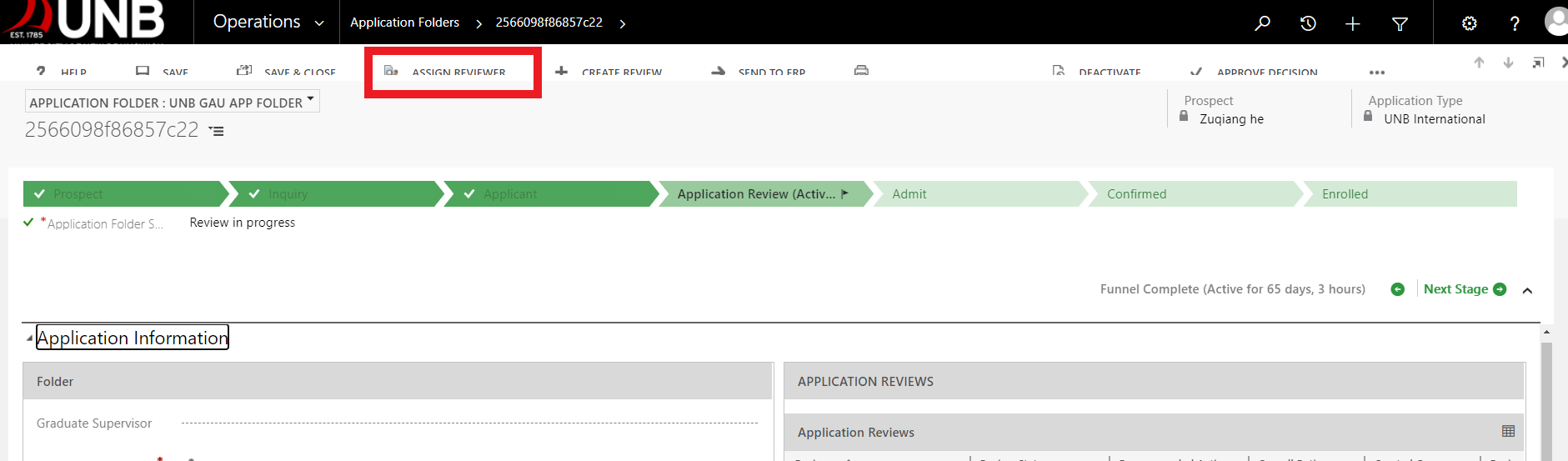
A window will pop up where you can add a reviewer. Start typing their name in the text box, and hit enter, which will generate a short list of those with similar names. Pick the correct user.
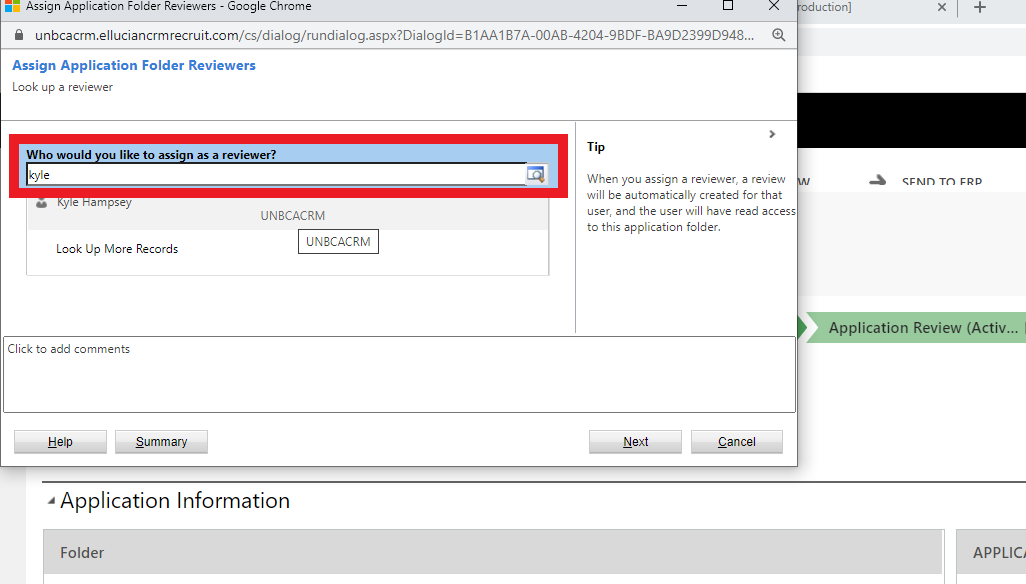
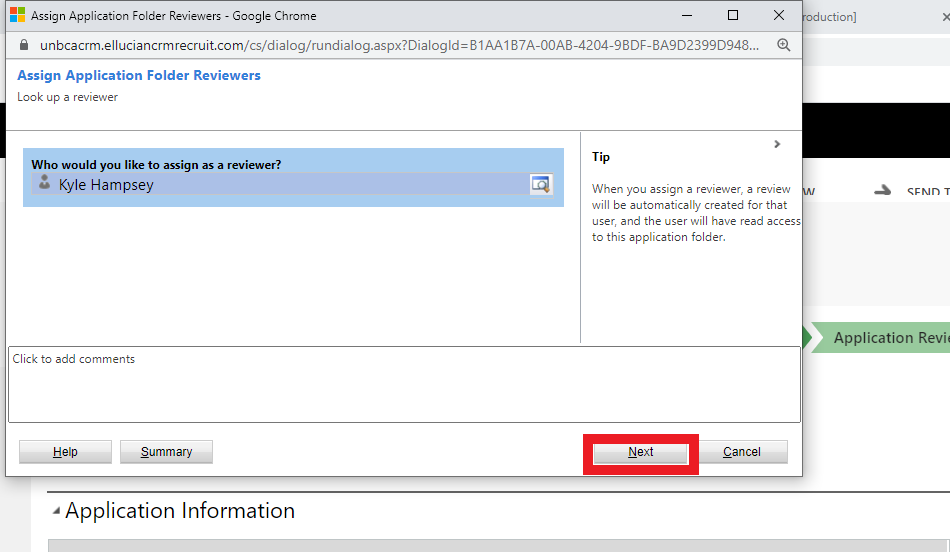
Once you have picked the user, their name will populate and be selected.
Hit Next.
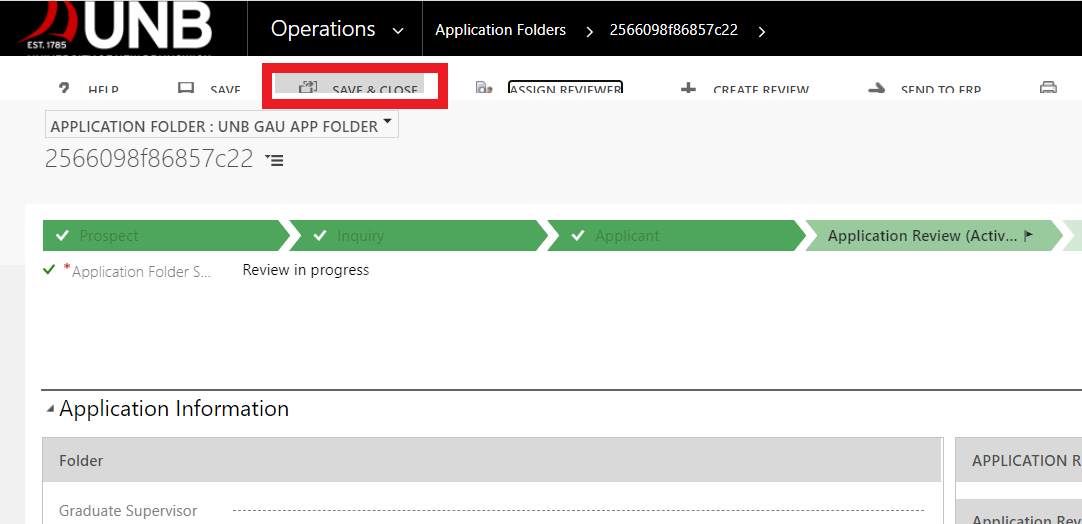
Once you have added the reviewer, be sure to 'SAVE & CLOSE'.
Check out the next tab for ideas on how you can track the progress of your assigned reviews.
Tracking Progress of Faculty Reviews
Each unit will be approaching how they assign reviews a little differently, but if you want to maximize the value of your dashboard, and the views that are included on it, there is a best practice to follow.
When a review is assigned to you by a Program Officer in SGS, that application has been determined to be complete and ready for a decision by the GAU.
Once you have completed your review and determined who should be added as reviewers and have assigned them, the 'Reviews I've Assigned' list will be populated.
This list is a spot built to help track the progress of the faculty members so that when a decision is ready to be made, you can assign a new review to your Director of Graduate Studies for the final recommendation.
As you can see below, you are able to view the status of the reviews. Once you are satisfied that enough reviewers have commented and provided recommendations for a decision to be made by your Director, you can click on the application folder which will bring you to the 'Application Review' tab, and assign your Director as a reviwer.